CreatingaWordPresswebsite:theme,pluginsandpitfallstoavoidCreating a WordPress website: theme, plugins and pitfalls to avoid
Creating a WordPress website step by step: WordPress.org or .com, hosting, choosing a theme, useful plugins, and the pitfalls that make a site slow or vulnerable.CreatingaaWordPresswebsitestepbybystep:WordPress.orgoror.com,hosting,choosingaatheme,usefulplugins,andandthepitfallsthatmakemakeasiteslowororvulnerable.
By Pablo Ordas · Published · 3 min read
Creating a WordPress website means choosing the tool behind a large share of the web. It's free, very flexible, and you can edit your content yourself. But a poorly built WordPress site quickly becomes slow, fragile or hard to evolve. I've built WordPress sites for businesses since I started: here are the steps, the right choices, and the pitfalls I see most often.CreatingaaWordPresswebsitemeanschoosingchoosingthetoolbehindaalargeshareofthetheweb.It'sfree,veryveryflexible,andyoucancanedityourcontentyourself.yourself.ButapoorlybuiltbuiltWordPresssitequicklybecomesbecomesslow,fragileorhardhardtoevolve.I'vebuiltbuiltWordPresssitesforbusinessesbusinessessinceIstarted:hereherearethesteps,thetherightchoices,andthethepitfallsIseemostmostoften.
WordPress.orgorWordPress.com?WordPress.org or WordPress.com?
They're two different things. WordPress.org is the free software you install with the host of your choice: you control everything, themes, plugins, data. WordPress.com is a hosted service, simpler to start, but some features depend on the plan you choose. For a professional site you want to grow, WordPress.org is the usual choice.They'retwotwodifferentthings.WordPress.orgisisthefreesoftwareyouyouinstallwiththehosthostofyourchoice:youyoucontroleverything,themes,plugins,plugins,data.WordPress.comisaahostedservice,simplertotostart,butsomefeaturesfeaturesdependontheplanplanyouchoose.Foraaprofessionalsiteyouwantwanttogrow,WordPress.orgorgistheusualchoice.choice.
ThestepstocreateaWordPresswebsiteThe steps to create a WordPress website
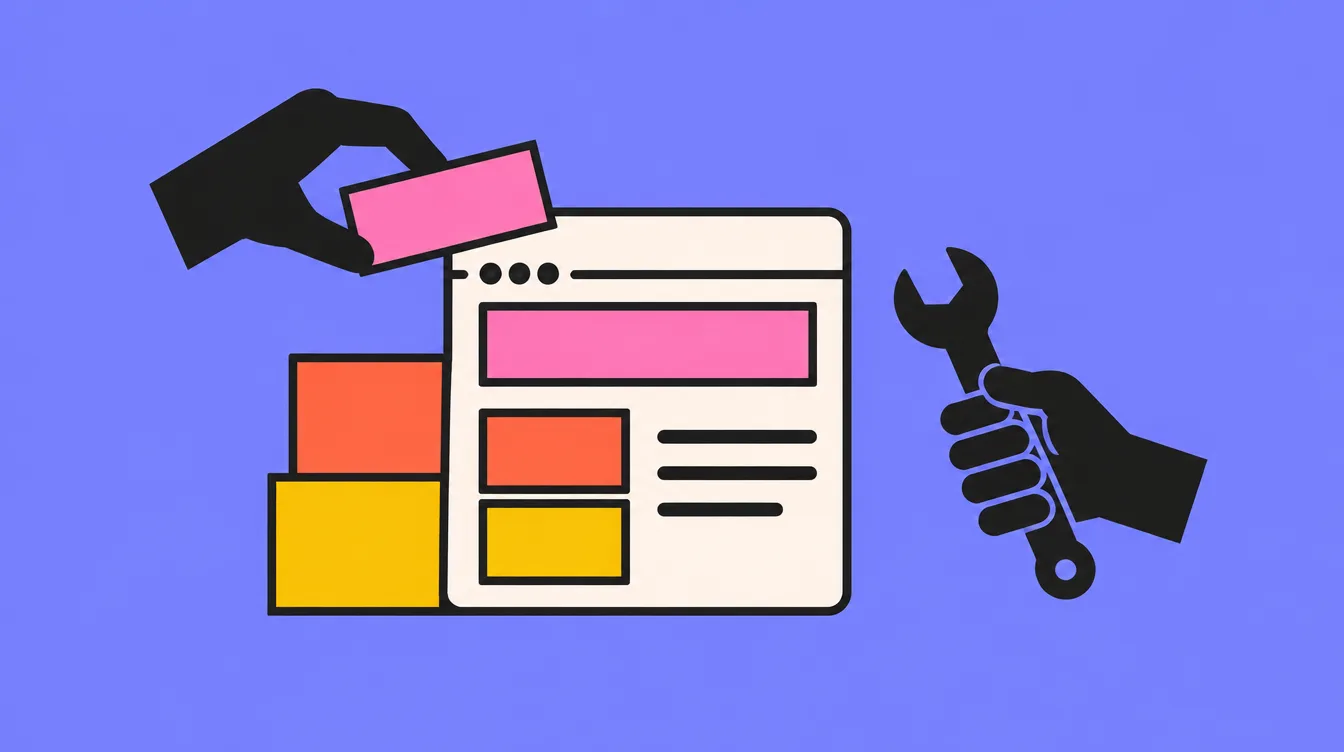
A WordPress site is an assembly: every piece needs its place.
Prepare the content first: pages, copy, photos. It's the first step of any website project.Preparethethecontentfirst:pages,copy,copy,photos.It'sthefirstfirststepofany website project..
Choose a domain name and hosting suited to WordPress.ChooseaadomainnameandhostinghostingsuitedtoWordPress.
Install WordPress (most hosts do it in one click) and set the basics: language, time zone, page addresses, HTTPS.InstallWordPressWordPress(mosthostsdoititinoneclick)andandsetthebasics:language,language,timezone,pageaddresses,addresses,HTTPS.
Choose a light theme and customise it to your brand.Chooseaalightthemeandcustomisecustomiseittoyourbrand.brand.
Add only the plugins you need.Addonlyonlythepluginsyouneed.need.
Create the pages, then check everything before launch with the technical SEO checklist.Createthethepages,thencheckeverythingeverythingbeforelaunchwiththethetechnical SEO checklist.
ChoosingyourthemeChoosing your theme
The theme gives the site its look. "All-in-one" themes promise to do everything, but often load a lot of unnecessary code, which slows the site. Prefer a light theme, regularly updated and well rated, then customise it with a page builder like Elementor or with WordPress's built-in editor.Thethemethemegivesthesiteitsitslook."All-in-one"themespromisepromisetodoeverything,butbutoftenloadalotlotofunnecessarycode,whichwhichslowsthesite.PreferPreferalighttheme,regularlyregularlyupdatedandwellrated,rated,thencustomiseitwithwithapagebuilderlikelikeElementororwithWordPressWordPress'sbuilt-ineditor.
GoodsignsGood signs
Recent updates and active support.Recentupdatesupdatesandactivesupport.
Fast display, even on phones.Fastdisplay,display,evenonphones.
No need to install a long list of plugins for it to work.Noneedneedtoinstallalonglonglistofpluginsforforittowork.
Usefulplugins,andonlythoseUseful plugins, and only those
The official directory lists thousands of plugins. Each one adds code, so weight and a security risk if it stops being updated. For most showcase sites, a few plugins are enough:Theofficialofficialdirectoryliststhousandsofofplugins.Eachoneoneaddscode,soweightweightandasecurityriskriskifitstopsbeingbeingupdated.Formostshowcaseshowcasesites,afewpluginspluginsareenough:
A contact form.Acontactcontactform.
An SEO plugin to set titles, descriptions and the sitemap.AnSEOSEOplugintosettitles,titles,descriptionsandthesitemap.sitemap.
An automatic backup plugin.Anautomaticautomaticbackupplugin.
A security or cache plugin if your host doesn't already handle it.Asecuritysecurityorcachepluginififyourhostdoesn'talreadyalreadyhandleit.
A cookie consent banner if you use analytics or advertising tools.Acookiecookieconsentbannerifyouyouuseanalyticsoradvertisingadvertisingtools.
PitfallstoavoidPitfalls to avoid
Security, updates, backups: the trio of a WordPress site that lasts.
PilinguppluginsPiling up plugins
Solving every problem with a new plugin ends in a slow, fragile site. Before adding one, ask whether the theme or WordPress already does it.Solvingeveryeveryproblemwithanewnewpluginendsinaaslow,fragilesite.BeforeBeforeaddingone,askwhetherwhetherthethemeorWordPressWordPressalreadydoesit.
ForgettingupdatesandbackupsForgetting updates and backups
WordPress, the theme and plugins get regular updates, often to fix security holes. A site that's never updated eventually gets hacked or breaks. Always back up before updating: it's the heart of WordPress maintenance.WordPress,thethethemeandpluginsgetgetregularupdates,oftentotofixsecurityholes.AAsitethat'sneverupdatedupdatedeventuallygetshackedororbreaks.Alwaysbackupupbeforeupdating:it'sthetheheartofWordPress maintenance..
PickingthecheapesthostingPicking the cheapest hosting
A slow server slows the whole site, whatever the theme. Hosting matters as much as the rest: I go through the criteria in the article on WordPress hosting.Aslowslowserverslowsthewholewholesite,whateverthetheme.theme.Hostingmattersasmuchmuchastherest:IIgothroughthecriteriacriteriainthearticleononWordPresshosting.
NeglectingSEOfromthestartNeglecting SEO from the start
Page addresses, titles, descriptions, light images: everything is easier to set before launch than after. The technical SEO checklist goes through these points one by one.Pageaddresses,addresses,titles,descriptions,lightimages:images:everythingiseasiertotosetbeforelaunchthanthanafter.Thetechnical SEO checklistgoesgoesthroughthesepointsoneonebyone.
A good WordPress site isn't the one with the most plugins, it's the one with the fewest.AgoodgoodWordPresssiteisn'tthetheonewiththemostmostplugins,it'stheoneonewiththefewest.
WordPress,Shopifyorcustom-built?WordPress, Shopify or custom-built?
WordPress is ideal if you want to run your site yourself and publish content. For a store, the question is WooCommerce or Shopify: I compare them in creating your online store. And if your need is very specific, a custom-coded site may fit better: that's the question of choosing the technology.WordPressisisidealifyouwantwanttorunyoursitesiteyourselfandpublishcontent.content.Forastore,thethequestionisWooCommerceororShopify:Icomparethemthemincreating your online store.AndAndifyourneedisisveryspecific,acustomcustom-codedsitemayfitfitbetter:that'sthequestionquestionofchoosing the technology.
MyadviceMy advice
Keep your WordPress site simple: a light theme, few plugins, regular updates and backups. That's the difference between a site that lasts for years and one that gets rebuilt after two. If you'd rather build it together, I explain how I work on the WordPress website page.KeepyouryourWordPresssitesimple:aalighttheme,fewplugins,plugins,regularupdatesandbackups.backups.That'sthedifferencebetweenbetweenasitethatlastslastsforyearsandoneonethatgetsrebuiltafteraftertwo.Ifyou'dratherratherbuildittogether,IIexplainhowIworkworkontheWordPress websitepage.page.
CanyoucreateaWordPresswebsiteforfree?Can you create a WordPress website for free?
The WordPress software is free, but a professional site needs a paid domain name and hosting. WordPress.com offers a free plan, with a limited address and features.TheWordPressWordPresssoftwareisfree,butbutaprofessionalsiteneedsneedsapaiddomainnamenameandhosting.WordPress.comcomoffersafreeplan,plan,withalimitedaddressaddressandfeatures.
DoyouneedtocodetocreateaWordPresswebsite?Do you need to code to create a WordPress website?
Not for a simple site: a theme and a page builder are enough. Code becomes useful for a highly customised design or specific features.Notforforasimplesite:aathemeandapagepagebuilderareenough.CodeCodebecomesusefulforaahighlycustomiseddesignororspecificfeatures.
HowmanypluginsshouldyouinstallonWordPress?How many plugins should you install on WordPress?
As few as possible. For a showcase site, a few well-chosen plugins are enough: form, SEO, backup, and security or cache if your host doesn't handle it.Asfewfewaspossible.Foraashowcasesite,afewfewwell-chosenpluginsareenough:enough:form,SEO,backup,andandsecurityorcacheififyourhostdoesn'thandlehandleit.
DoesaWordPresssiteneedmaintenance?Does a WordPress site need maintenance?
Yes. WordPress, the theme and plugins must be updated regularly, after a backup. Without that, the site eventually breaks or gets hacked.Yes.WordPress,WordPress,thethemeandpluginspluginsmustbeupdatedregularly,regularly,afterabackup.WithoutWithoutthat,thesiteeventuallyeventuallybreaksorgetshacked.hacked.
Tell me about it in a few lines. I'll get back to you, and you'll have a price from our first conversation.Tellmemeaboutitinaafewlines.I'llgetgetbacktoyou,andandyou'llhaveapricepricefromourfirstconversation.conversation.