
A WordPress sitemap is the list of your site's pages. It comes in two versions: an XML file, which WordPress builds by itself and Google reads, and a “sitemap” page you can add for your visitors. Here is where to find the first, how to send it to Google, and how to build the second without installing a plugin.
A sitemap is a file that gives search engines the address of every page they should know about. Google mostly discovers pages by following links. The sitemap is a safety net: a brand-new page, or a page few links point to, is still listed there.
It does not push a site up in the results. Google says so itself: a sitemap helps discover addresses but does not guarantee that what it contains will be crawled or indexed (source). Its job ends at presenting the pages. Ranking then depends on content, as explained in the article on how organic search works.
The XML sitemap is a technical file meant for robots. The HTML sitemap is a real page of your site, with clickable links, meant for visitors. Both share the same name, which causes confusion in many tutorials.
- XML sitemap: read by Google and Bing, built automatically by WordPress, absent from menus, to be declared in Search Console.
- HTML sitemap page: read by visitors, built by you, often placed in the footer, useful when the site has many pages.
Yes. Since version 5.5, released in August 2020, WordPress builds an XML sitemap without any plugin. It lives at your-site.com/wp-sitemap.xml and updates itself each time a page is published, edited or deleted (official announcement).
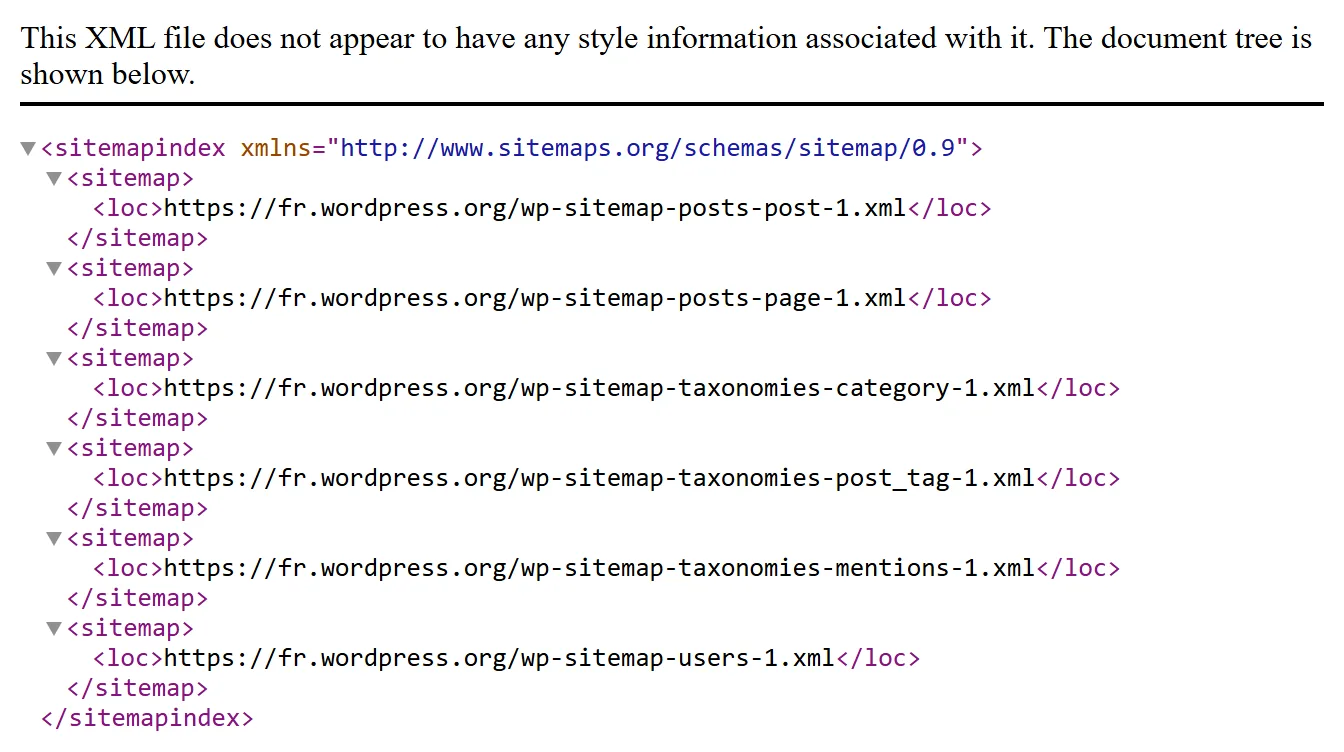
This file is an index. It points to one sub-sitemap per content type: posts, pages, categories, tags and authors. Each sub-sitemap holds at most 2,000 addresses. Beyond that, WordPress opens a second one.
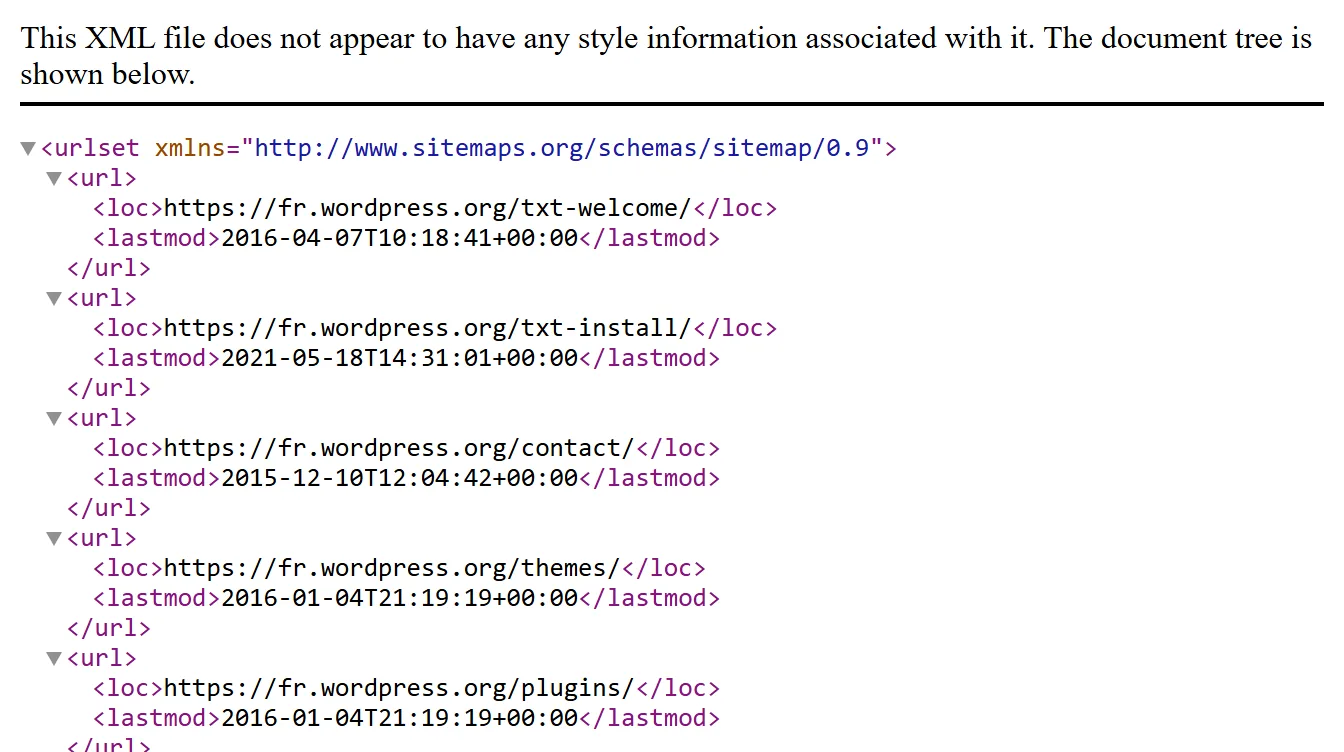
WordPress adds neither “priority” nor “change frequency”. That is deliberate and harmless: Google states that it ignores both values. It does use the last modification date, provided it is accurate (source).
Type your site's address followed by /wp-sitemap.xml in the browser. If an SEO plugin is installed, the address changes. Here are the four to try, in order.
- your-site.com/wp-sitemap.xml: the built-in WordPress sitemap.
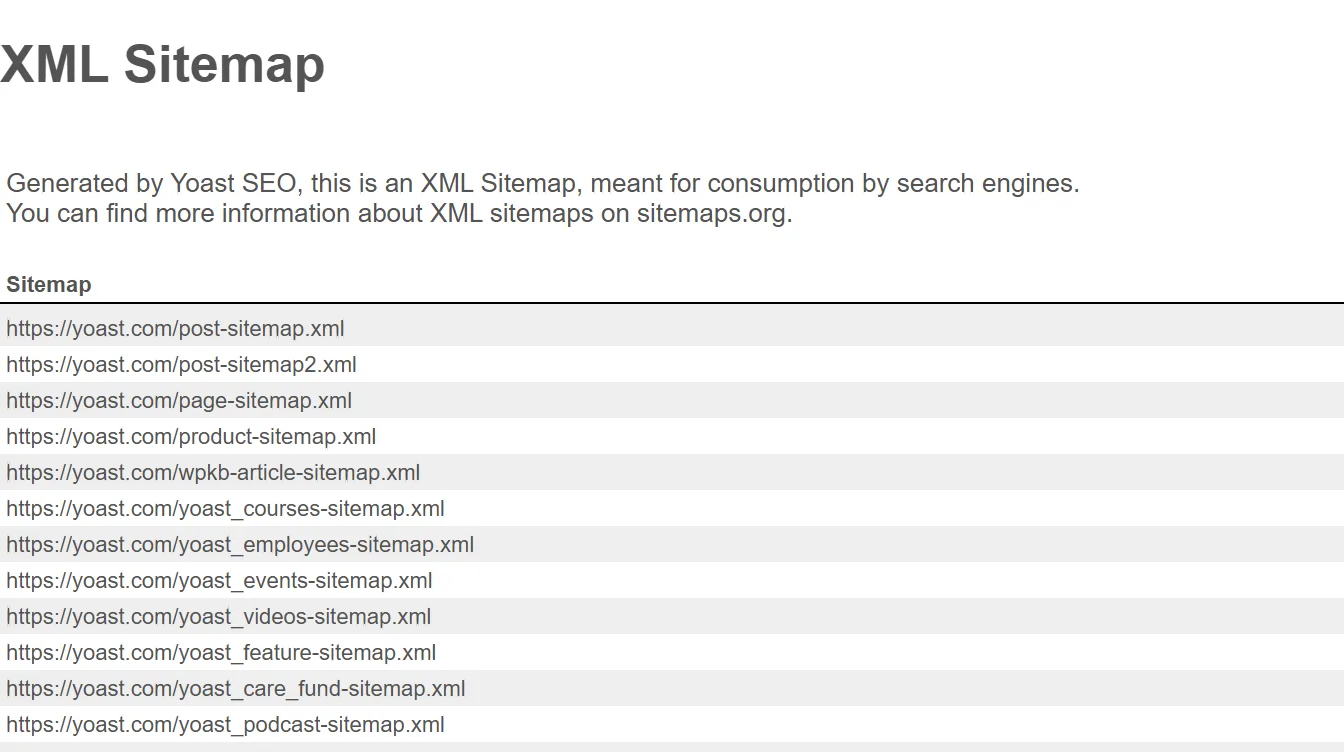
- your-site.com/sitemap_index.xml: the Yoast SEO or Rank Math sitemap.
- your-site.com/sitemap.xml: the All in One SEO sitemap, and the address many sites use.
- your-site.com/sitemaps.xml: the SEOPress sitemap.
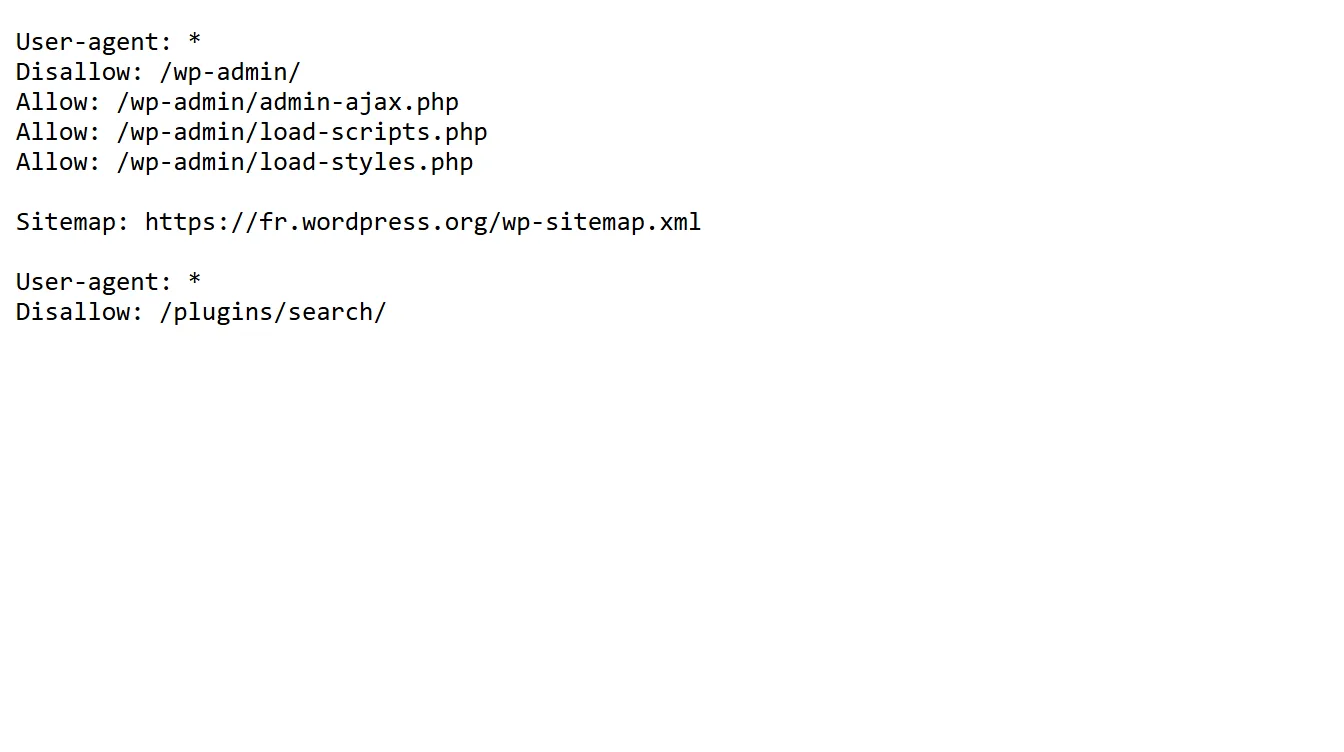
Another method, valid for any site: open your-site.com/robots.txt. WordPress writes a line there starting with “Sitemap:” followed by the exact address of the sitemap.
Not for a showcase site or a small blog: the built-in sitemap is enough. An SEO plugin becomes useful when you want to choose what goes into the sitemap, for instance to remove author or tag pages, or to add images.
When you install Yoast SEO, Rank Math, SEOPress or All in One SEO, the plugin replaces the built-in sitemap with its own. So only one sitemap is active at a time, and the plugin's is the one to declare to Google.
- Built-in sitemap: nothing to install, nothing to set. You cannot choose what it contains without touching code.
- SEO plugin sitemap: checkboxes to include or exclude each content type, images added, a settings page. One more plugin to keep up to date.
You declare it once in Google Search Console, Google's free tool for site owners. After that, Google comes back to read it by itself.
- Open Search Console and pick your site. If it is not there yet, add it and verify ownership.
- In the left menu, click “Sitemaps”.
- In the “Add a new sitemap” field, type the end of the address: wp-sitemap.xml, or sitemap_index.xml with Yoast SEO or Rank Math.
- Click “Submit”. The status turns to “Success” once Google has read the file, sometimes after a few hours.
- Come back a week later: the “Discovered pages” column should roughly match the number of pages on your site.
There is no need to resubmit it for each new post: the file updates itself and Google rereads it regularly. Submitting the sitemap is one of the launch-day steps described in the technical SEO checklist.
WordPress does not create this page by itself, but its built-in blocks are enough to build it in five minutes. It then updates without you touching it. None of the tutorials on Google's first page shows this method: they all go through a plugin.
- In “Pages”, click “Add New” and name the page “Sitemap”.
- Add a “Pages” heading, then the “Page List” block: it shows all your published pages, child pages included.
- Add a “Posts” heading, then the “Latest Posts” block. In its settings, raise the number of items shown.
- Add a “Categories” heading, then the “Categories” block.
- Publish, then add a link to this page in the site footer.
If your site has several hundred posts, a dedicated plugin will be more practical, because it sorts content and lets you exclude some. Rank Math, SEOPress and All in One SEO also offer an HTML sitemap in their settings.
A little, indirectly. It gives every page one more internal link, and it helps a lost visitor. On a ten-page site well linked through the menu, it adds almost nothing. On a store or a blog with several hundred pages, it keeps content from being left with no link at all.
In most cases the cause is a setting, not a breakdown. Check these four points in order: the first one alone explains a good share of the errors.
- In “Settings”, then “Reading”, the “Discourage search engines from indexing this site” box is ticked. While it is, WordPress turns its sitemap off. It often stays ticked after the build phase.
- An SEO plugin is active: the built-in sitemap is replaced. Try /sitemap_index.xml or /sitemap.xml.
- Permalinks need a refresh: go to “Settings”, then “Permalinks”, and click “Save Changes” without changing anything.
- A caching or security plugin blocks the file: turn them off one by one to find which.
A sitemap should list the pages you want to see in Google, and only those. The built-in sitemap includes by default pages that are often pointless for a small site.
- Author pages, when you are the only writer: they repeat your list of posts.
- Tag pages holding only one or two posts.
- Thank-you pages after a form, the cart, the checkout page and the customer account.
- Pages you have set to “noindex”: a page you ask Google to ignore has no place in the sitemap.
With an SEO plugin, this sorting is done with checkboxes. Without one, it takes a line of code in the theme: the kind of setting I handle during WordPress maintenance.
Not always. Google states that a site with fewer than about 500 pages, well linked to each other, can do without one (source). It recommends one mostly for large sites, new sites that still get few links, and sites publishing many images or videos.
In practice the question does not arise on WordPress: the sitemap already exists and costs nothing. And a site that has just gone live is precisely a new site with few links. Declaring it in Search Console takes two minutes.
My site does not run on WordPress: its sitemap is generated by code, but the rules are the same. On 12 November 2026, while auditing the site, I saw that the sitemap gave every page the same modification date, that of the last deployment. Yet Google only takes that date into account if it is reliable. The same date everywhere tells it nothing.
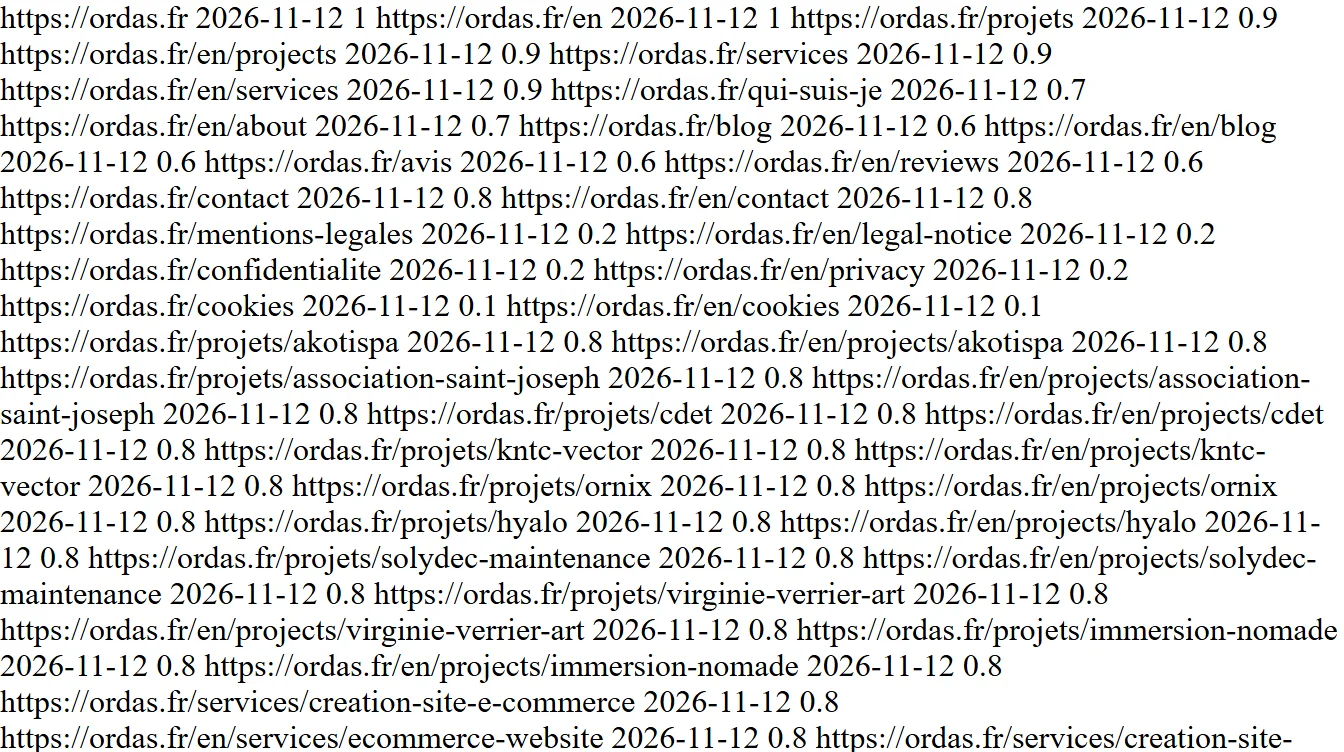
I replaced that single date with the real last modification date of each article and each city page. I cannot yet say what it changes: an effect like this is judged over several months, not two days. On WordPress you do not have this problem: the built-in sitemap and the plugin ones write the right date by themselves.
- Declaring two sitemaps to Google, the built-in one and the plugin's: only one is active, the other returns an error.
- Leaving the box that discourages search engines ticked after launch.
- Changing domain name or moving to https without redeclaring the sitemap: the old addresses stay in Search Console. The topic is covered in the article on redesigning a website.
- Believing that submitting the sitemap is enough to be indexed: Google discovers the pages, then decides alone whether to keep them.
- Listing redirected or deleted pages in the sitemap: Search Console flags them as errors.
At your-site.com/wp-sitemap.xml for the built-in sitemap, created by WordPress since version 5.5. With Yoast SEO or Rank Math, it is your-site.com/sitemap_index.xml. The exact address is also written in your-site.com/robots.txt, on the line starting with “Sitemap:”.
No. WordPress has built an XML sitemap by itself since version 5.5. An SEO plugin is only useful to choose what it contains, for instance to remove author pages or add images.
In Google Search Console, open the “Sitemaps” menu, type wp-sitemap.xml in the “Add a new sitemap” field, then click “Submit”. You do this once: Google then comes back to read the file by itself.
The XML sitemap is a technical file read by search engines. The HTML sitemap is a page of the site, with clickable links, meant for visitors. The first is useful to every site, the second mostly to sites with many pages.
Most often because the “Discourage search engines from indexing this site” box is ticked in Settings, then Reading, or because an SEO plugin replaced the built-in sitemap with its own. Saving the permalinks again fixes the other cases.
Each file of the built-in sitemap holds at most 2,000 addresses. Beyond that, WordPress automatically creates another file and adds it to the index. So there is no practical limit for a business site.
No. The file updates itself with each publication, and Google rereads it regularly once it has been declared in Search Console.